I recently found myself needing to change the monitor that a cheap HDMI “dummy plug” pretended to be. It was a random one I had bought on Amazon several years ago that acted as a 4K monitor, and I needed it to be something simpler that didn’t support a 4K resolution. The story behind why is a long one that I’m still figuring out and might eventually become a separate blog post in the future.
If you’re not familiar with dummy plugs, here’s a quick primer: they are tiny dongles you can plug into an HDMI, DVI, etc. port that don’t actually do anything with the video signal. They simply have the minimum circuitry needed for a video source device, like a computer, to think that a monitor is hooked up. In general this entails a pull-up resistor on pin 19 (HPD) to +5V, as well as a little I2C EEPROM chip containing the Extended Display Identification Data (EDID). This is useful for headless machines to force the OS to think a monitor is attached.

The EDID contains all the info about the monitor: the manufacturer, manufacture date, supported resolutions, audio channels, color space, and stuff like that. My goal was to replace the dummy plug’s EDID with an identical copy of an EDID from one of my many 1080p HDMI capture devices. Then, the computer I plugged it into would think the capture device was plugged in instead of a 4K monitor, and everything would be hunky dory.
I wasn’t sure if the dummy plug’s EDID EEPROM would be programmable, but I decided to give it a shot. There was a chance that it would have its write-protect pin configured to disable programming, but I figured it wouldn’t hurt to try.
Conveniently, I found that my Raspberry Pi Zero has an I2C controller wired to the correct pins on its HDMI port. This makes sense — the Pi would need to be able to read the EDID of an attached monitor. This post on the Raspberry Pi Forums and this GitHub comment were helpful for explaining which I2C controller(s) to look at in software on various Pi devices:
Before I go further, I want to make it clear that it may be possible to screw up a monitor if you follow these instructions while a real monitor is plugged in and it doesn’t have its EDID protected. Be careful to only run these commands if you have something attached to the HDMI port that you’re not afraid of bricking, such as a dummy plug! Also, make sure you are confident you’re on the correct I2C bus! Always read the EDID and parse it first to make sure it actually contains an EDID before you attempt a write. If you attempt these commands on a PC, it’s possible that you could accidentally flash hardware that isn’t an EDID, like a RAM module’s SPD EEPROM.
Starting from a fresh Raspberry Pi OS Lite install, I performed the following modifications:
sudo raspi-configsudo apt install i2c-tools- Unfortunately, this requires network access, which creates a bit of a problem if you are on a Pi Zero. You might need a USB-Ethernet adapter to make this happen. Another slightly crazy option is to temporarily take the SD card out of your Pi, put it into your desktop PC running Debian/Ubuntu, run
sudo apt install binfmt-support qemu-user-staticon your PC, chroot into the SD card’s rootfs (options 1.3 and 2.1 worked for me), and run the apt install command inside of the chroot.
- Unfortunately, this requires network access, which creates a bit of a problem if you are on a Pi Zero. You might need a USB-Ethernet adapter to make this happen. Another slightly crazy option is to temporarily take the SD card out of your Pi, put it into your desktop PC running Debian/Ubuntu, run
And with those prerequisites out of the way, I was ready to start tinkering with the dummy plug’s EEPROM. Note that I also needed an HDMI-to-Mini-HDMI adapter.

Since I was using a Raspberry Pi Zero, I chose bus 2. You could change the number below to something else on a different model, as listed above (e.g. 20 or 21 on a Pi 4).
I ran i2cdetect to see if the EDID EEPROM was recognized:
This came back with the following result, showing that an I2C device was detected at address 0x50, which is exactly the address used for EDID:
     0  1  2  3  4  5  6  7  8  9  a  b  c  d  e  f
00:                         -- -- -- -- -- -- -- --
10: -- -- -- -- -- -- -- -- -- -- -- -- -- -- -- --
20: -- -- -- -- -- -- -- -- -- -- -- -- -- -- -- --
30: -- -- -- -- -- -- -- -- -- -- -- -- -- -- -- --
40: -- -- -- -- -- -- -- -- -- -- -- -- -- -- -- --
50: 50 51 52 53 54 55 56 57 -- -- -- -- -- -- -- --
60: -- -- -- -- -- -- -- -- -- -- -- -- -- -- -- --
70: -- -- -- -- -- -- -- --
Interestingly, this particular dummy plug also responds with addresses 0x51 through 0x57 present. These other addresses seem to contain copies of the same EDID. Not all dummy plugs show up like this — another one I have only detects 0x50. Anyway, next, I dumped the original EDID from it:
get-edid -b $edid_i2c > edid-orig.bin
2
This is read-edid version 3.0.2. Prepare for some fun.
Attempting to use i2c interface
Only trying 2 as per your request.
256-byte EDID successfully retrieved from i2c bus 2
Looks like i2c was successful. Have a good day.
Nice! To make sure I got a good dump, I tried it twice and compared the results to make sure they were identical. Then I printed it in a format suitable for copying/pasting to something like edidreader.com:
od -v -An -txC edid-orig.bin
This spit out a nice little hex dump of the EDID that was stored on it:
 00 ff ff ff ff ff ff 00 1a ae 31 9d 00 00 00 00
01 19 01 04 85 58 31 78 3e a4 fd ab 4e 42 a6 26
0d 47 4a 2f cf 00 e1 c0 d1 c0 b3 00 a9 40 95 00
81 80 81 40 81 c0 02 3a 80 18 71 38 2d 40 58 2c
45 00 e0 0e 11 00 00 1e 4d d0 00 a0 f0 70 3e 80
30 20 35 00 c0 1c 32 00 00 1a 00 00 00 fc 00 48
44 4d 49 20 4d 6f 6e 69 74 6f 72 0a 00 00 00 10
00 00 00 00 00 00 00 00 00 00 00 00 00 00 01 4a
02 03 46 70 52 e1 60 5f 5d e6 65 64 62 10 04 03
1f 20 21 22 13 12 01 26 09 7f 07 11 7f 50 83 01
00 00 6e b9 14 00 40 00 18 78 20 00 60 01 02 03
04 67 d8 5d c4 01 78 00 07 6c 03 0c 00 20 00 f0
78 20 00 40 01 04 08 e8 00 30 f2 70 5a 80 b0 58
8a 10 c0 1c 32 00 00 1e b7 e6 ff 18 f1 70 5a 80
58 2c 8a 00 ff 1c 32 00 00 1e 56 5e 00 a0 a0 a0
29 50 30 20 35 00 80 68 21 00 00 1a 00 00 00 e9
Pasting it into the site linked above, I could see it was a valid EDID:
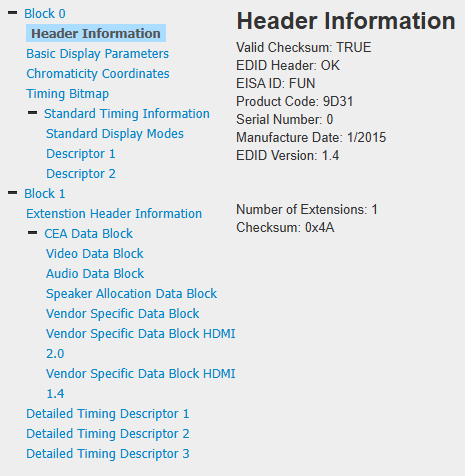
Now that I was confident I had the dummy plug’s original EDID backed up, I unplugged it from the Pi’s HDMI port and plugged my capture device in instead, and repeated the exact same procedure to dump its EDID:
get-edid -b $edid_i2c > edid-capture-card.bin
I confirmed it was also a valid EDID. Finally, I unplugged the capture device and connected the dummy plug again, and wrote the capture device’s EDID to it with this fun little code snippet. There are tools out there that can probably do this more efficiently, but hey, this works and doesn’t require any special packages other than the standard userspace Linux I2C tools and bash or dash!
edidbytes=($(od -v -An -txC edid-capture-card.bin))
for i in "${!edidbytes[@]}"; do
	byte=0x${edidbytes[$i]}
	echo Writing byte $i: $byte...
	i2cset -f -y $edid_i2c 0x50 $i $byte
done
As a quick explanation, this reads the entire EDID (probably 256 bytes in size) from the dump file created earlier, and formats it into an array of two-digit hex strings using od. Each entry in the array represents one byte in the EDID. Then it loops over each byte, prepending a “0x” prefix and writing it out to the EEPROM using i2cset.
After running this code, I re-read the EDID from the dummy plug and checked to see if it matched the file I started from:
get-edid -b $edid_i2c > edid-test.bin
diff edid-test.bin edid-capture-card.bin
The diff command produced no output at all, which indicated that the new dump was identical. The dummy plug’s EEPROM had successfully been reprogrammed with the EDID from my capture device!
Of course, at this point I anxiously plugged it into my test computer, powered the computer up, and noticed that everything was great and it acted as though my HDMI capture device was plugged in instead of a 4K monitor. Success!
I thought I’d share this procedure in case it’s useful for someone else in the future. You could probably also use this solution to go in the opposite direction — upgrading an old 1080p dummy plug to add 4K support. Again, be careful with these commands! I wouldn’t recommend tinkering with I2C writes on an actual PC. Use a Raspberry Pi so you don’t accidentally brick your desktop PC.