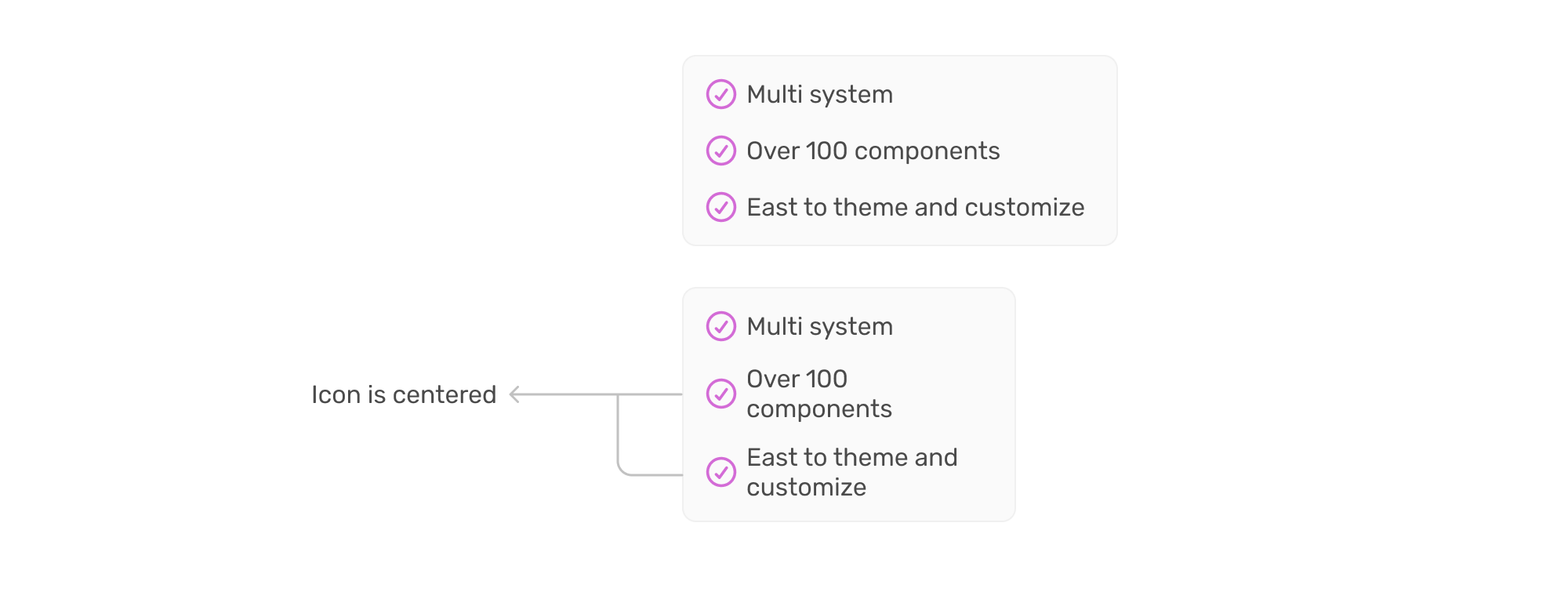
There is a common design pattern that sometimes gets missed or overlooked. It’s having a list of items, each with an icon. When the text is one line, the icon is centered, but when the text has multiple lines, the icon is still centered but looks odd.
Here is an example:

Throughout this article, I will show two solutions that I use based on the HTML:
- The icon is an HTML element (e.g.,
<svg>or<img>) - The icon is added via a pseudo-element as a background image
The icon in the markup
In this case, we have a container with the icon and the content. Usually, we use flexbox. Like so:
<ul class="list">
  <li class="list-item">
    <svg class="icon"></svg>
    <span class="label">How to align an icon to a label.</span>
  </li>

</ul>
.list-item {
  display: flex;
  align-items: center;
  gap: 0.5rem;
}
By default, it looks okay. Here it is:
- How to align an icon to a label.
However, when the list width is smaller and the text wraps, the icon will be centered. This is not the behavior we want.
- How to align an icon to a label.
How can we keep the icon aligned vertically when the text is wrapped? First, I went back to the basics. Instead of using align-items: center, I used start as a value.
.list-item {
  display: flex;
  align-items: start;
  gap: 0.5rem;
}
But this caused an even bigger alignment issue. The highlighted area is the line height. The text element height has an empty space above and below it that comes from the font itself. When align-items: start is applied, the icon will be aligned to the top of the container.
- How to align an icon to a label.
What if we pushed the icon down to have it aligned with the top line?
- How to align an icon to a label.
.list-item {
  display: flex;
  align-items: start;
  gap: 0.5rem;
}

.icon {
  transform: translateY(3px);
}
That works. Let’s push the limits of it and see if it persists! To do that, I built the demo in a way that changes one or more of the following:
- List item font size
- Icon size
- List container width
Try it and notice how the icon becomes misaligned.
- How to align an icon to a label.
Using a fixed value for the transform won’t work when the icon size, font size, or container width changes.
The solution: using the lh unit
If we can get the line-height value and we have a known icon size, we can make the offset relative to them. I wrote about the line height unit on the blog if you want to dig further.
.icon {

  --size: var(--icon-size);
  --offset: calc((1lh - var(--size)) / 2);
  transform: translateY(var(--offset));
}
- How to align an icon to a label.
In this solution, if you change any of the three values, the alignment will just work. In some cases, the offset might be negative, just like the following example:
- How to align an icon to a label.
Icon as a pseudo-element
Sometimes, we don’t need to add the icon as an HTML element, so we use a pseudo-element for that.
Here is the basic CSS:
.list-item {
  display: flex;
  gap: 0.5rem;
}

.list-item::before {
  content: "";
  --size: var(--icon-size);
  width: var(--size);
  height: var(--size);
  background-image: url("data:image/svg+xml,%3Csvg xmlns='http://www.w3.org/2000/svg' width='24' height='24' viewBox='0 0 24 24' fill='none' stroke='%23222' stroke-width='2' stroke-linecap='round' stroke-linejoin='round'%3E%3Ccircle cx='12' cy='12' r='10'/%3E%3Cpath d='m9 12 2 2 4-4'/%3E%3C/svg%3E");
  background-repeat: no-repeat;
}
At first glance, it looks fine, right? Try to increase the font size a bit.
- How to align an icon to a label.
Did you notice that the icon is cut off? This is because we need to limit the background size.
.list-item {
  display: flex;
  gap: 0.5rem;
}

.list-item::before {
  content: "";
  --size: var(--icon-size);
  width: var(--size);
  height: var(--size);
  background-image: url("data:image/svg+xml,%3Csvg ....");
  background-size: contain;
  background-repeat: no-repeat;
}- How to align an icon to a label.
Try to make the font size larger. Did you notice that the icon width shrinks? This is because, by default, a flex item will shrink. We need to override that.
.list-item {
  display: flex;
  gap: 0.5rem;
}

.list-item::before {
  content: "";
  --size: var(--icon-size);
  flex-shrink: 0;
  width: var(--size);
  height: var(--size);
  background-image: url("data:image/svg+xml,%3Csvg ....");
  background-size: contain;
  background-repeat: no-repeat;
}- How to align an icon to a label.
Again… try to increase the font size of the label. The icon size stays as is. The next step is to handle centering while factors like icon size, font size, and container width change.
The solution
Currently, the list item is a flexbox container, and by default, the items stretch (vertically). Why isn’t the icon stretching in our case? Well, this is because we set a fixed height.
I set the height property to auto.
.list-item {
  display: flex;
  gap: 0.5rem;
}

.list-item::before {
  content: "";
  --size: var(--icon-size);
  flex-shrink: 0;
  width: var(--size);
  height: auto;
  background-image: url("data:image/svg+xml,%3Csvg ....");
  background-size: contain;
  background-repeat: no-repeat;
}- How to align an icon to a label.
Now it’s a bit trickier. If you increase the font size, the icon width will stay square-like. If you decrease it, it will become rectangle-like with extra spacing.
Take a look:
- How to align an icon to a label.
To avoid that, we need to force the aspect ratio to a square.
.list-item {
  display: flex;
  gap: 0.5rem;
}

.list-item::before {
  content: "";
  --size: var(--icon-size);
  flex-shrink: 0;
  aspect-ratio: 1;
  width: var(--size);
  height: auto;
  background-image: url("data:image/svg+xml,%3Csvg ....");
  background-size: contain;
  background-repeat: no-repeat;
}- How to align an icon to a label.
With that, we will use the same technique as before and offset the pseudo-element by a few pixels.
.list-item {
  display: flex;
  gap: 0.5rem;
}

.list-item::before {
  content: "";
  --size: var(--icon-size);
  --offset: calc((1lh - var(--size)) / 2);
  flex-shrink: 0;
  aspect-ratio: 1;
  width: var(--size);
  height: auto;
  background-image: url("data:image/svg+xml,%3Csvg ....");
  background-size: contain;
  background-repeat: no-repeat;
  transform: translateY(var(--offset));
}- How to align an icon to a label.
The icon is now centered. It’s interesting to see what’s been used here:
- flexbox
- aspect-ratio
- the lh unit
- calc()
- height: auto
Outro
And that’s it. I solved a problem while working on a project and wanted to share it. Hope you’ve learned something new.
Thanks for reading.
The Layout Maestro
Building layouts can be a challenging task, especially if you don’t know the core mental model of CSS layouts. You don’t have to worry about that anymore. I released an interactive CSS layout course, and I called it The Layout Maestro.

Check out The Layout Maestro course and level up your CSS layout skills.