I had the misfortune of locking myself out of my work MacBook.
You’d be justified in asking: Don’t you use it every day?
Yes, I do—and probably more than I should admit. But a few things led to this situation. For one, I’d gotten too used to relying on Touch ID. As a result, if my muscle memory failed me, I was stuck. On top of that, I kept entering my office Active Directory (AD) password instead of my Mac password—again, muscle memory at work. By the time I realized what I was doing wrong, I was locked out.
So, like every corporate employee, I reached out to IT. I’ll spare you the rant about how useful—or not—that decision was.
Using macOS recovery options, I managed to reset my laptop’s password—without fully understanding the ramifications. When I logged back in with the new password, boom: all my keychain data and some local user data were gone, and syncing had stopped.
It turns out that this data was encrypted using my old password, and the reset utility doesn’t decrypt and re-encrypt it with the new one. In hindsight, that makes sense from a security standpoint. Still, I had assumed there might be some kind of master key that would handle this automatically during a password reset.
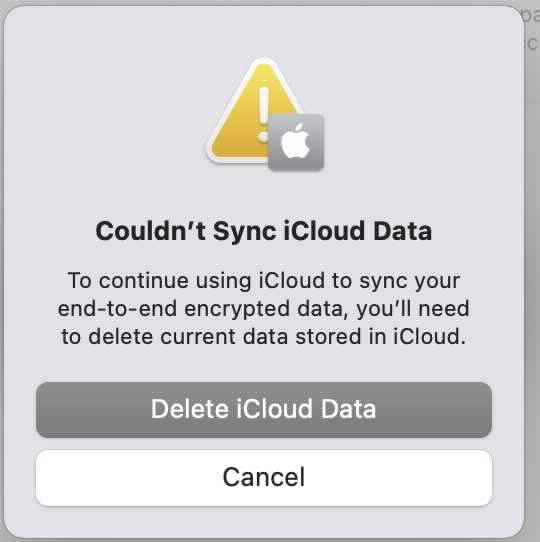
After the reset, macOS gave me the option to resync with my old data. Unfortunately, I had already exhausted the allowed attempts to enter my old password. Every time I tried to resync, I was met with the dreaded “delete iCloud data” prompt.

As a long-time Linux (Arch Linux) tinkerer, I figured there had to be a way to either:
- Reset the failed login attempt counter, or
- Recover the data directly
But since this was Apple, I knew it wouldn’t be straightforward.
After some digging, I found that keychain data is stored at:
~/Library/KeychainsThe main file is:
login.keychain-dbDuring the password reset, macOS had moved the original keychain to:
login_renamed_1.keychain-dband created a fresh login.keychain-db.
Restoring my old data turned out to be surprisingly simple: replace the new keychain file with the old one.
Navigate to:
~/Library/KeychainsRemove the newly created keychain (make sure it doesn’t contain anything important):
rm login.keychain-dbRename the old keychain back to the default:
mv login_renamed_1.keychain-db login.keychain-db
Voilà—data restored.
When I opened Keychain Access, it prompted me for my old password. After entering it, everything synced correctly and updated to use the new password going forward.